Monte Carlo Calculator
Reshuffle a strategy's real trade history hundreds of times and see the range of outcomes those same trades could plausibly have produced.
- TradingApp
- WS_MonteCarlo
- Requires
- TradeStation Desktop
- Install
- Single
.eldimport
WS_MonteCarlo
Single .eld file. Import into TradeStation Desktop via File → Import.
1. What This Tool Does
WS_MonteCarlo is a free, standalone TradeStation TradingApp that stress-tests a strategy's real trade
history. It reorders (or resamples) the same trades many times and shows the range of outcomes those
trades could plausibly have produced — not only the one path the backtest happened to walk.
It takes a strategy (or an existing trades file) and returns a fan chart of simulated equity paths, a Max Drawdown histogram and a P5 / P50 percentile grid: how rough the ride could have been, not only how it actually went.
Trades in → many reshuffled runs → fan chart + drawdown distribution + percentile grid
1.1 Who Is This For
Anyone running a systematic strategy in TradeStation who wants an honest answer to the question "how much of the backtest's result was lucky sequencing, and how deep could the drawdown realistically get?" It works for one's own strategy or one being evaluated, from either a strategy TradeStation can run or a trades file that already exists.
No programming is needed; everything is point-and-click. The only prerequisites are TradeStation itself and either a compiled strategy or an existing trades file.
1.2 How It Fits Into the TradeStation Workflow
WS_MonteCarlo is a stand-alone TradingApp: no chart is required, and it does not depend on the
WalkStrat application. It opens from TradeStation Apps like any other TradingApp and stays available for
the session.
2. Installation
- Import (double-click)
WS_MonteCarlo.eld. The import also adds theWS_TradesRecorderstrategy the tool uses to capture trades; it needs no setup. - In any Workspace, go to the TradeStation Apps and click on
WS_MonteCarlo.
There is no separate installer and nothing to configure before first use. To create trades from a strategy, the tool only needs a working folder for its temporary trades file (§4.4).
3. Quick Start
From an existing trades file (a WS_TradesRecorder-format CSV, for example one written by
WS_TradesExporter, or any CSV with TradePnLNet and CumNetPnL columns):
- Tick the Trades File checkbox.
- Click Browse and select the file.
- Click Start Monte Carlo.
From a strategy (checkbox unticked — Working Folder, the default):
- Click Browse and pick a working folder (or type its path). The tool writes a temporary trades file there.
- Fill in Symbol and Interval under Data1, and pick a Strategy from the dropdown.
- Set Last Date, Days Back, Commission, Slippage and Contracts.
- Click Create Trades File. It runs the strategy once and captures its trades; the button returns immediately and Messages reports "Trades file created" when the trades are in.
- When Start Monte Carlo lights up, click it.
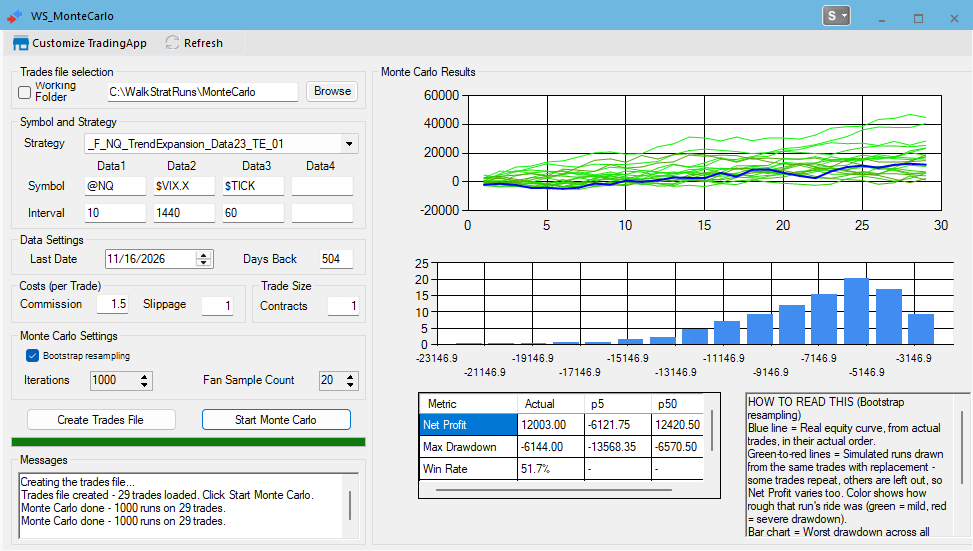 From a strategy — Working Folder mode, trades file created by the toolIllustrative result from a test run. No result predicts future performance.TradeStation Technologies, Inc. All rights reserved.
Either path ends in the same place: a fan chart, a drawdown histogram and a metrics grid.
4. Field Reference
4.1 Symbol and Strategy
Used only when creating trades from a strategy (§3, second path). A Browsed trades file already holds everything the simulation needs: in Trades File mode these fields, Data Settings, Costs, Trade Size and Create Trades File are greyed out. They keep their values for when the box is unticked again.
| Field | What it does |
|---|---|
| Symbol / Interval (Data1) | The market and bar interval the strategy runs on. The interval is in minutes (e.g. 5). Symbol is required, and the interval must be a number greater than 0. Typing into either one enables Create Trades File. |
| Data2, Data3, Data4 | Optional extra data streams, for strategies that read them (e.g. a second market as a filter). Each needs both a Symbol and an Interval (minutes, greater than 0), or neither. In Data2's Symbol, a comma-separated list is allowed: the entry matching the Data1 symbol is used, otherwise the first one. |
| Strategy dropdown | Every strategy currently compiled in TradeStation. The strategy runs once with its own current input values — the tool does not sweep or optimize inputs. |
4.2 Data Settings
| Field | What it does |
|---|---|
| Last Date | End date of the history window for the run. |
| Days Back | How much history to load, in trading days (not calendar days). Must be greater than 0. |
4.3 Costs (per Trade) and Trade Size
| Field | What it does |
|---|---|
| Commission | Dollars per side, charged on entry and again on exit — once per trade, whatever the number of contracts. |
| Slippage | Ticks per side, also charged on entry and exit, converted at the instrument's tick value. |
| Contracts | Position size for the run. Must be greater than 0. |
All results are net of these costs.
4.4 Trades File Selection
| Control | What it does |
|---|---|
| Working Folder / Trades File checkbox | Chooses what the box next to Browse holds. Unticked (Working Folder, the default): the folder where Create Trades File writes its temporary trades file. Ticked (Trades File): an existing trades CSV to analyse directly. |
| Browse | Working Folder mode: TradeStation offers no folder picker, so navigate into the folder and open any file name there; only the folder is kept. Trades File mode: pick an existing trades CSV; it loads at once and enables Start Monte Carlo. Cancelling the dialog changes nothing. |
| Create Trades File | Runs the strategy from §4.1 once, through a companion recorder that captures every trade whatever the strategy itself does with files. Returns immediately; watch Messages and the progress bar. |
| Start Monte Carlo | Runs the simulation and shows the results. Enabled only once trades are loaded — from Browse or from a finished Create Trades File run. At least 2 trades are needed. |
4.5 Monte Carlo Settings
| Field | What it does |
|---|---|
| Iterations | How many simulated runs (500 to 2,000). More runs give steadier percentiles. On large trades files the tool lowers the number automatically so a run stays fast (never below 200); fewer runs than requested on a big file is expected, not an error. Messages says how many runs were done, and when they were lowered. |
| Fan Sample Count | How many of the runs are drawn as full equity paths on the fan chart (20 to 100). All runs count in the percentiles and the histogram either way; this only sets how many lines are drawn. |
| Bootstrap resampling checkbox | Switches the simulation mode — see §6. Unticked (default) = Shuffle. |
5. Reading the Results
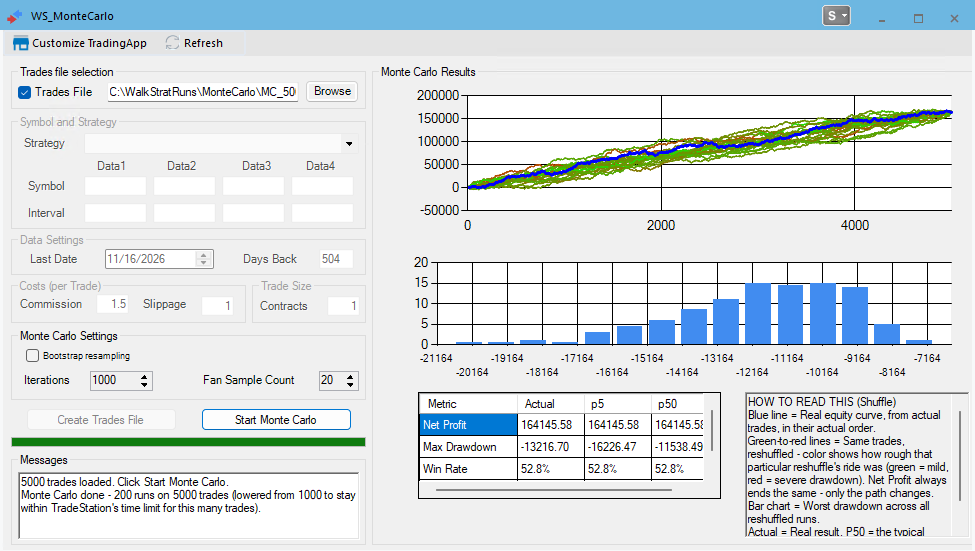 Monte Carlo Results — Shuffle, a 5,000-trade file (runs lowered to 200)Illustrative result from a test run. No result predicts future performance.TradeStation Technologies, Inc. All rights reserved.
5.1 Equity Chart
The blue line is the strategy's real equity curve: its actual trades in their actual order. Every other line is one simulated run, coloured green-to-red by how deep that run's own drawdown was, relative to the mildest and the worst seen in this simulation. A chart that is mostly green with a few red streaks is a much better sign than one that is mostly orange and red.
In Shuffle mode every line ends at the same final value as the blue line — only the path differs. In Bootstrap mode the end points vary too (§6).
5.2 Max Drawdown Histogram
How deep the worst drawdown got, bucketed across every simulated run (not only the lines drawn on the fan chart). It is the fuller picture behind the P5 / P50 numbers in the grid.
5.3 Metrics Grid
| Column | Meaning |
|---|---|
| Actual | The real result, from the actual trade order. Max Drawdown is measured on closed-trade equity, exactly as in the simulated runs, so Actual, P5 and P50 can be compared directly. |
| P5 | Only 5% of the simulated runs were worse than this — the tail-risk read, usually more useful for position sizing than the median. |
| P50 | The median simulated run: half were worse, half better. |
| Row | Notes |
|---|---|
| Net Profit | In Shuffle mode, Actual, P5 and P50 are always equal — the same trades in a different order add up to the same total. That is expected, not a bug. In Bootstrap mode they differ (§6). |
| Max Drawdown | The row the tool exists for. It varies from run to run in both modes. |
| Win Rate | In Shuffle mode Actual, P5 and P50 are equal — the order does not change which trades won. In Bootstrap mode the win rate of each run can differ and is not simulated here, so P5 and P50 show "–". |
5.4 How to Read This
The panel beside the grid repeats the essentials in plain language, worded for the mode that ran (Shuffle or Bootstrap). It appears once the first simulation has finished.
6. Shuffle vs. Bootstrap Resampling
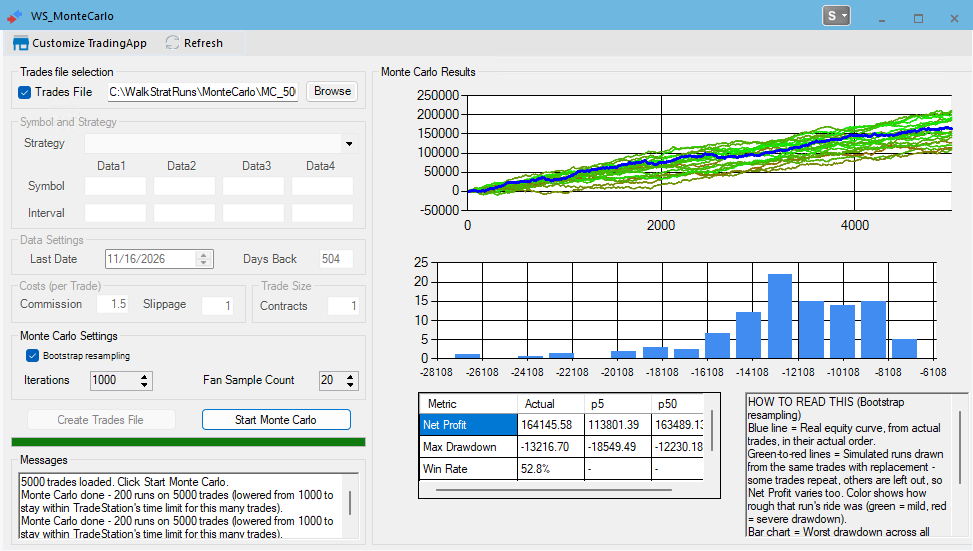 Monte Carlo Results — Bootstrap resampling, the same 5,000 trades: Net Profit now variesIllustrative result from a test run. No result predicts future performance.TradeStation Technologies, Inc. All rights reserved.
Two different questions about the same trade history:
- Shuffle (default, unticked) — every trade is used exactly once, in a new random order. Question answered: "had these same trades come in a different sequence, how much rougher could the ride have been?" Net Profit is the same in every run; only the drawdown path changes.
- Bootstrap (ticked) — each run draws trades at random with replacement from the same pool, so a trade can be picked several times or not at all. Question answered: "drawing from this same population of trade outcomes, how much could the total result itself have varied?" Net Profit varies here too, not only the drawdown.
Shuffle is the standard, conservative read and stays the default. Bootstrap is for when the variability of the result itself is the question, not only the variability of the path.
7. Tips & Troubleshooting
Trades File mode greys out what it does not use. Symbol and Strategy, Data Settings, Costs, Trade Size and Create Trades File only matter for creating trades from a strategy. With the box ticked they are greyed out; unticked, they come back with their values.
Create Trades File returns immediately — by design, not a hang. The strategy runs in the background; wait for "Trades file created" in Messages before expecting Start Monte Carlo to light up.
Fewer runs than requested on a very large trades file is expected (§4.5).
The created trades file is temporary. The file written by Create Trades File
(WS_MonteCarlo_TempTrades.csv, in the working folder) is deleted when the tool closes. If TradeStation
closes unexpectedly it may stay behind; the next run simply overwrites it. To keep it, copy it elsewhere
before closing the tool. A file selected with Browse is never changed or deleted.
Common issues:
- Start Monte Carlo stays greyed out — no trades are loaded yet. Browse a file or finish a Create Trades File run first. At least 2 trades are needed; Messages says so when there are fewer.
- "Set a valid working folder first" — in Working Folder mode, Browse to a folder (or type an existing path) before Create Trades File.
- "Symbol is required" / "Interval is required: minutes, a number greater than 0" — fill in Data1's Symbol and Interval before Create Trades File.
- "DATA2 requires both Symbol and Interval" (or DATA3 / DATA4) — fill both boxes of that data stream, or clear both. "A Data2-4 Interval must be minutes, a number greater than 0" — fix that interval.
- The grid shows 0.00 everywhere — the trades file lacks the
TradePnLNetandCumNetPnLcolumns (or their headers are spelled differently). OnlyWS_TradesRecorder-format files, or files with the same column names, are supported. - "Strategy run failed" in Messages — the line includes TradeStation's own error; usually a symbol, interval or data issue with the run itself.
End of Guide.
TradeStation®, TradingApp®, EasyLanguage®, and PowerEditor® are registered trademarks of TradeStation Technologies, Inc. WalkStrat is an independent entity and is not affiliated with, endorsed, sponsored, or certified by TradeStation Technologies, Inc. or any of its affiliates. Nothing here is trading advice.