Installation
Prerequisites, setup, activation and the Working Folder.
Prerequisites
Before installing WalkStrat, ensure your system meets the following standard operational requirements:
- TradeStation: Version 10.0 Desktop — installed and licensed
- At least one algorithmic strategy written in EasyLanguage
Setup
WalkStrat is delivered as a standard Windows installation wizard (WalkStrat.exe). The installer automatically deploys all required dependencies.
- Run
WalkStrat.exe(previously downloaded). - Select the installation folder (preferably not on your system drive).
- Accept the dependencies installation. Only missing dependencies will be installed.
- From the application installation folder, import (double-click)
WalkStrat.eld.
Activating the App
Before you start:
- Make sure TradeStation 10 is running and you have the
WalkStratTradingApp in the TradeStation Apps. - Have your raw strategy code ready (a plain EasyLanguage text file or copied from the TradeStation Development Environment).
- You have a dedicated working folder on disk (e.g.
D:\WalkStratWD).
In any Workspace, go to the TradeStation Apps and click on WalkStrat. WalkStrat opens.
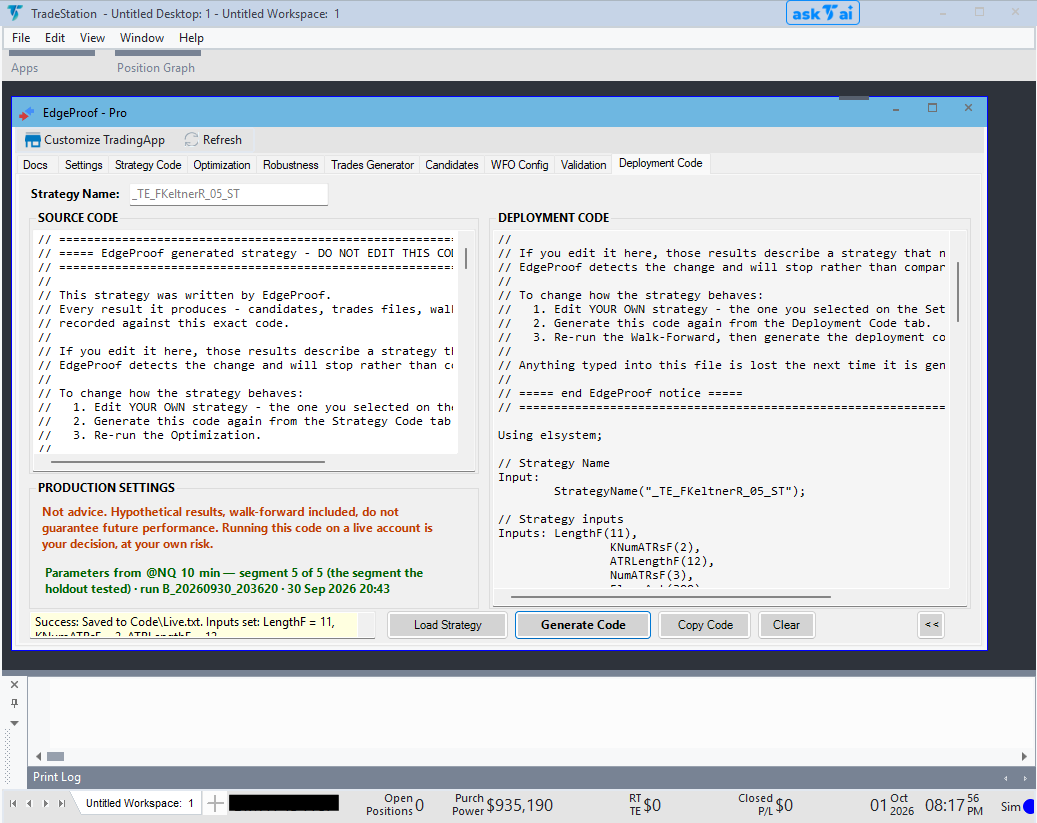 WalkStrat opened in TradeStation WorkspaceIllustrative result from a test run. No result predicts future performance.TradeStation Technologies, Inc. All rights reserved.
Working Folder
Every strategy used in WalkStrat will work in a dedicated folder on disk — referred to as the StrategyFolder throughout this guide. It is created automatically from the selected Working Folder and the generated strategy name, so a Working Folder of H:\WalkStratWD and a generated name of _TE_MyStrategy_ST gives H:\WalkStratWD\_TE_MyStrategy_ST.
WalkStrat reads and writes all files relative to the StrategyFolder. During its workflow, it creates the following sub-folders automatically:
MyStrategy\
  Code\            ← the generated EasyLanguage files
  Logs\            ← WalkStrat.log, the diagnostic log
  Trades\          ← trades CSV files from each optimization run, in dated sub-folders
  Selected\        ← the parameter sets that pass the initial filtering and, later, the walk-forward plan
    Scorecard\     ← one saved Scorecard per Symbol/Interval
    Settings\      ← the settings each saved candidate was run with
  Validation\      ← OOS segment trades files from Walk-Forward runs
Folders appear as the workflow reaches them, so a new strategy folder will not contain all of these at once.
Logs\WalkStrat.logis the file to attach to any support request — it records what the app was doing when something went wrong. If the strategy folder cannot be resolved yet, the log is written to%LOCALAPPDATA%\WalkStrat\Logs\instead.
Set the Working Folder on the Settings tab before anything else. Clicking Save Settings without setting it prompts for it.